User manual
The snowpea user manual covers the main terminal UI (TUI) and desktop app screens, the information they show, and the action to take on each screen.
On this page
- Work in the terminal
- Work in the desktop app
- Choose your next guide
Work in the terminal
The terminal UI (TUI) is the client opened by running snowpea with no arguments. Tool permissions, command interpretation, and context compaction are decided by the daemon (snowpea core).
1.1 The setup wizard
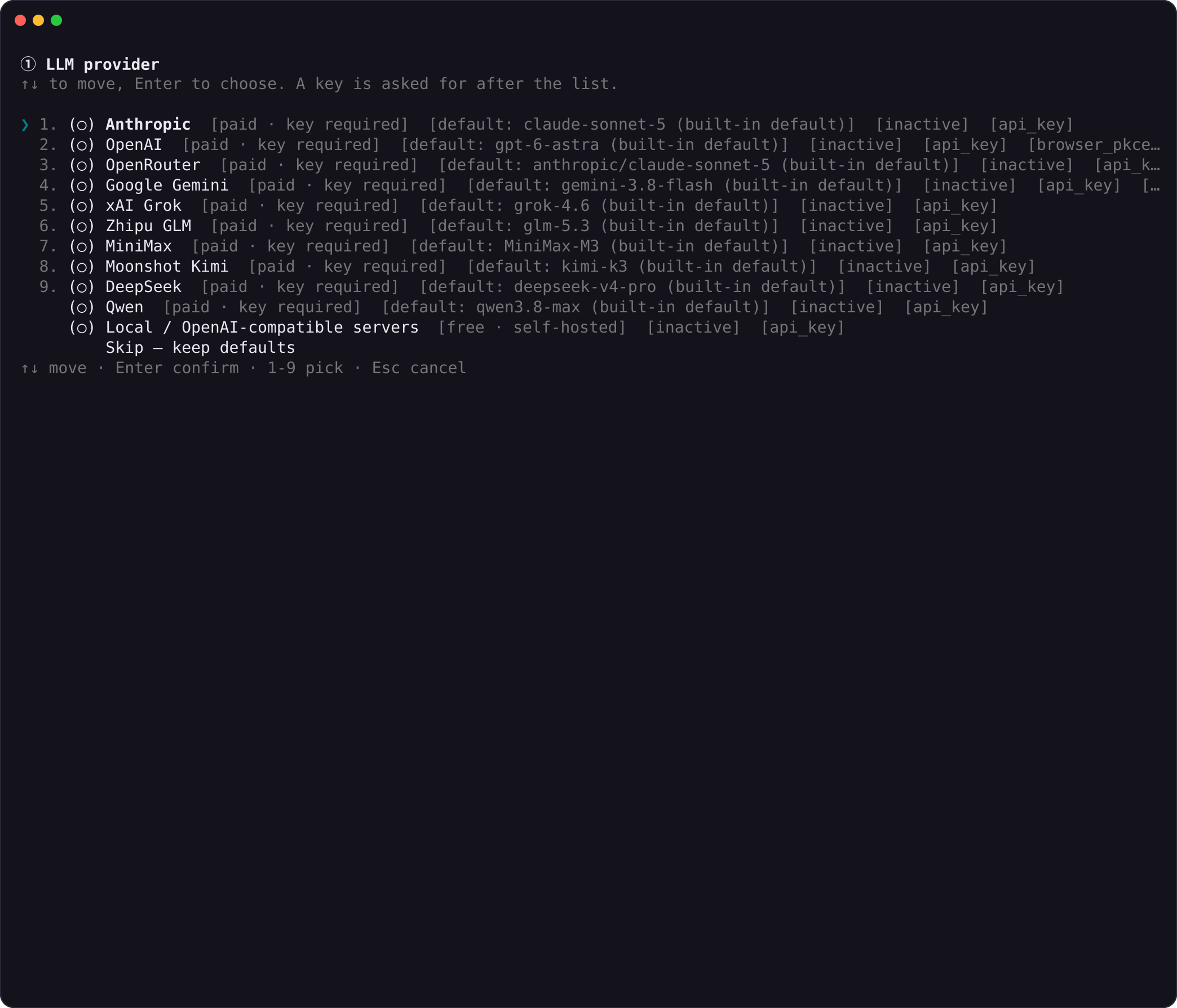
The setup wizard is the provider configuration screen shown on first run or opened with snowpea setup --full. The Providers screen lists the eleven vendors that ship in core, with a star on the default. The right side shows the authentication methods each vendor supports.
| Item | Value |
|---|---|
| Reopen command | snowpea setup --full |
| Provider count | eleven |
| Authentication methods | API key, browser login (device code or OAuth PKCE) |
| Default marker | star |
- Move the cursor to a vendor where you already have an account and press
Enter. - Select the authentication method on the next screen.
- Paste the API key or start the browser login.
- If a matching key exists in the environment, choose whether to use that key.
- To keep the defaults, select Skip — keep defaults.
Later, snowpea setup providers can register several model profiles and assign them per agent.
1.2 The launch screen
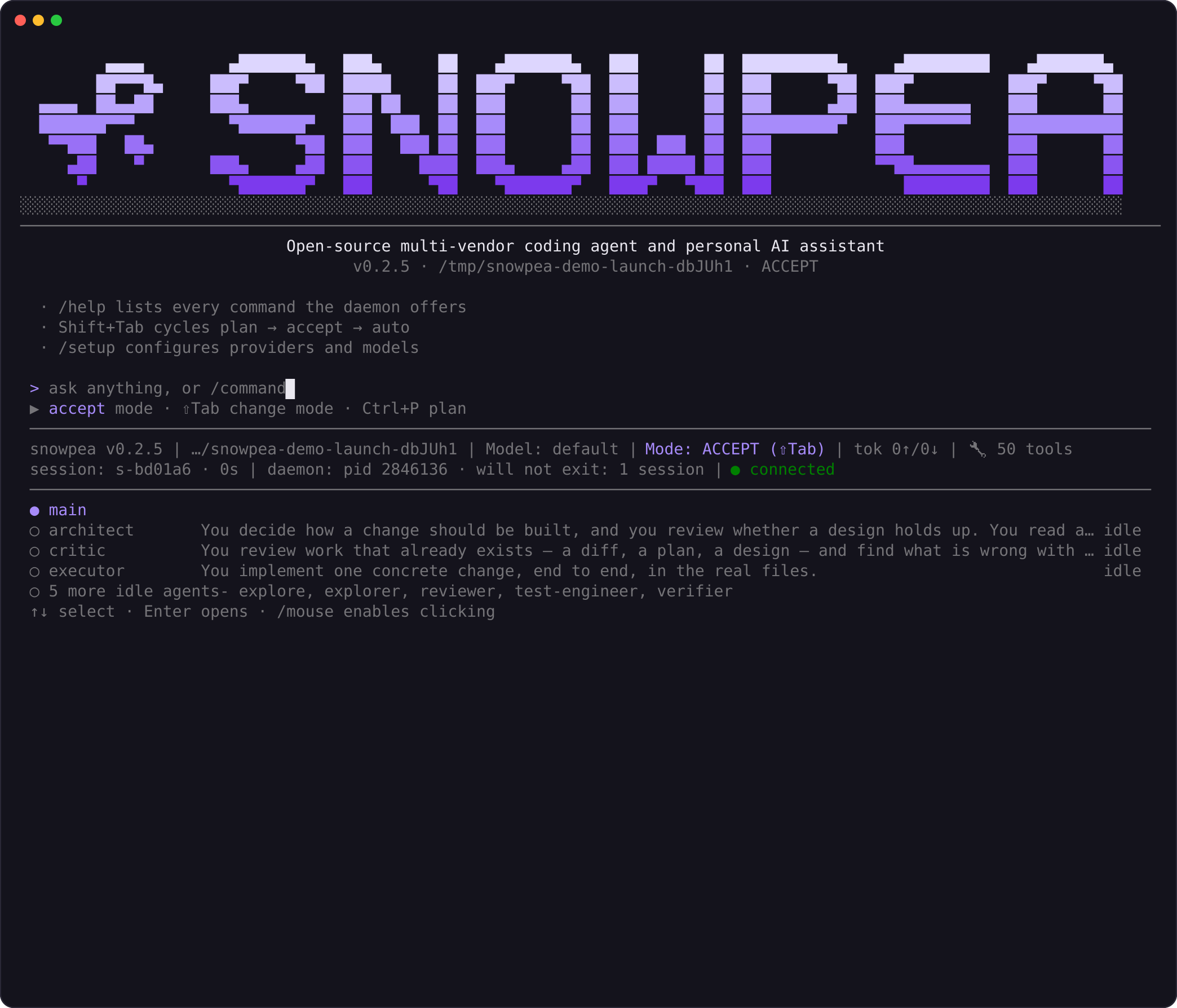
The launch screen appears once when a session starts. Under the wordmark sized to the terminal, it shows the tagline and version · vendor/model · working directory · mode.
If the daemon has a session for the current directory, the screen also shows the last session time, the last prompt, and the R or /resume action. If no matching session exists, that block is not shown.
- To resume the last session, press
Ron an empty input. - To choose from all saved sessions, enter
/resumeor/sessions. - To start a new session, type a prompt.
The banner is printed only once.
1.3 A live session
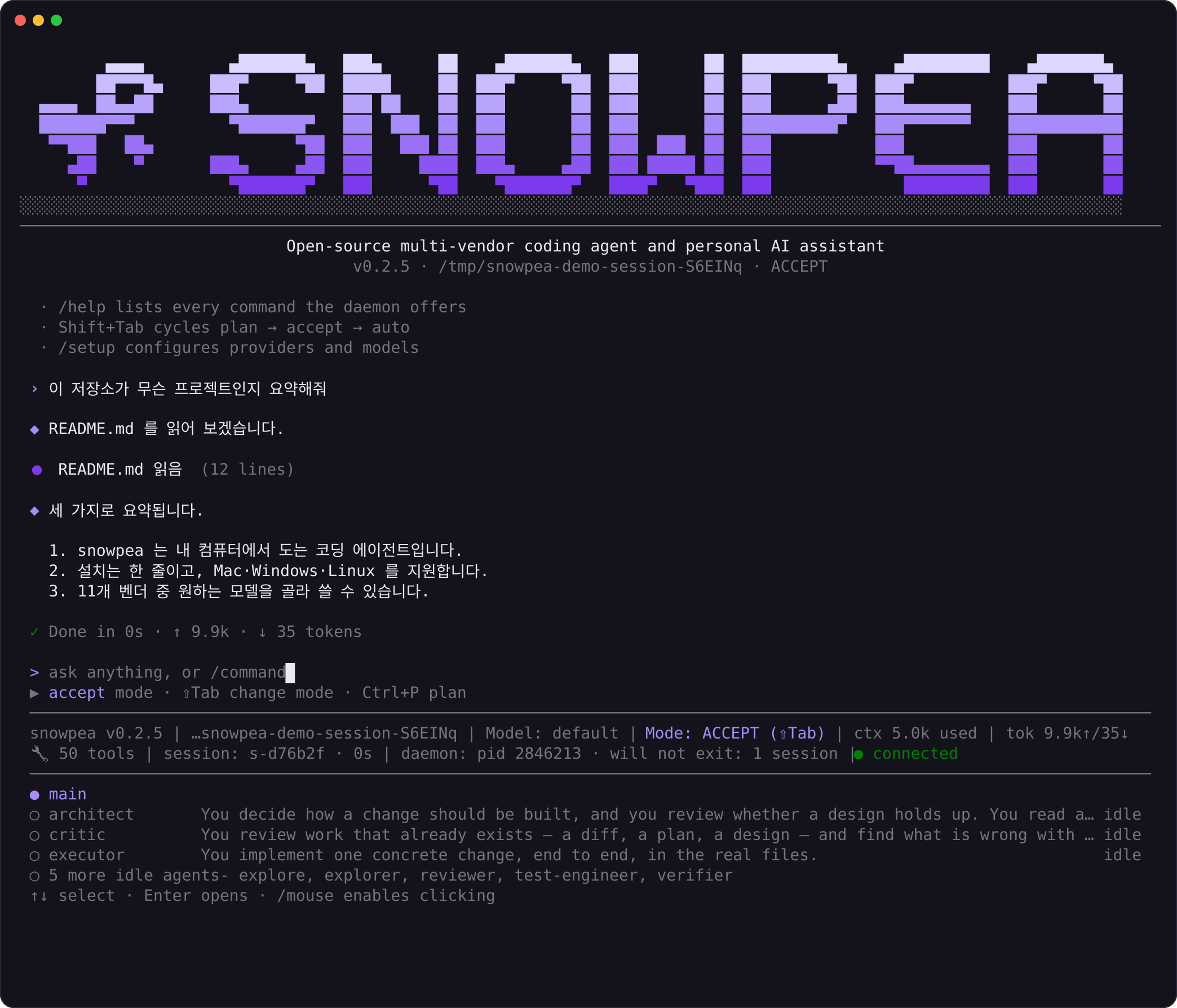
A live session screen is split into output history and the input area. The upper area shows prompts, collapsed tool calls, and streamed answers. The terminal UI draws inline rather than as a full-screen application, so scrolled output remains in terminal scrollback and supports the mouse and Ctrl+Shift+F.
The live region contains the working indicator, input, mode summary row, status line, context warning, and agent rows. The context warning appears only when its condition is met.
The status line uses this format:
snowpea v0.1.2 | ~/project | Model: anthropic/claude-sonnet-4-5 | Mode: ACCEPT | ctx 34% (68k/200k)| Display | Meaning |
|---|---|
ctx | model context window usage |
| Below 70% | dim display |
| 70% and above | amber display |
| 85% and above | red display |
| Above 80% | [!!] context 85% — /compact to free space warning row |
- While a turn is running, type the next prompt.
- The prompt is queued and processed first in, first out.
- To drop the running turn and the queue, press
Esc. - To expand the newest tool call or diff, press
Ctrl+O. - At the end of prompt history, press
↓to move into the panel below the input. - On an agent row, press
Enterto open that agent's conversation.
1.4 Approvals
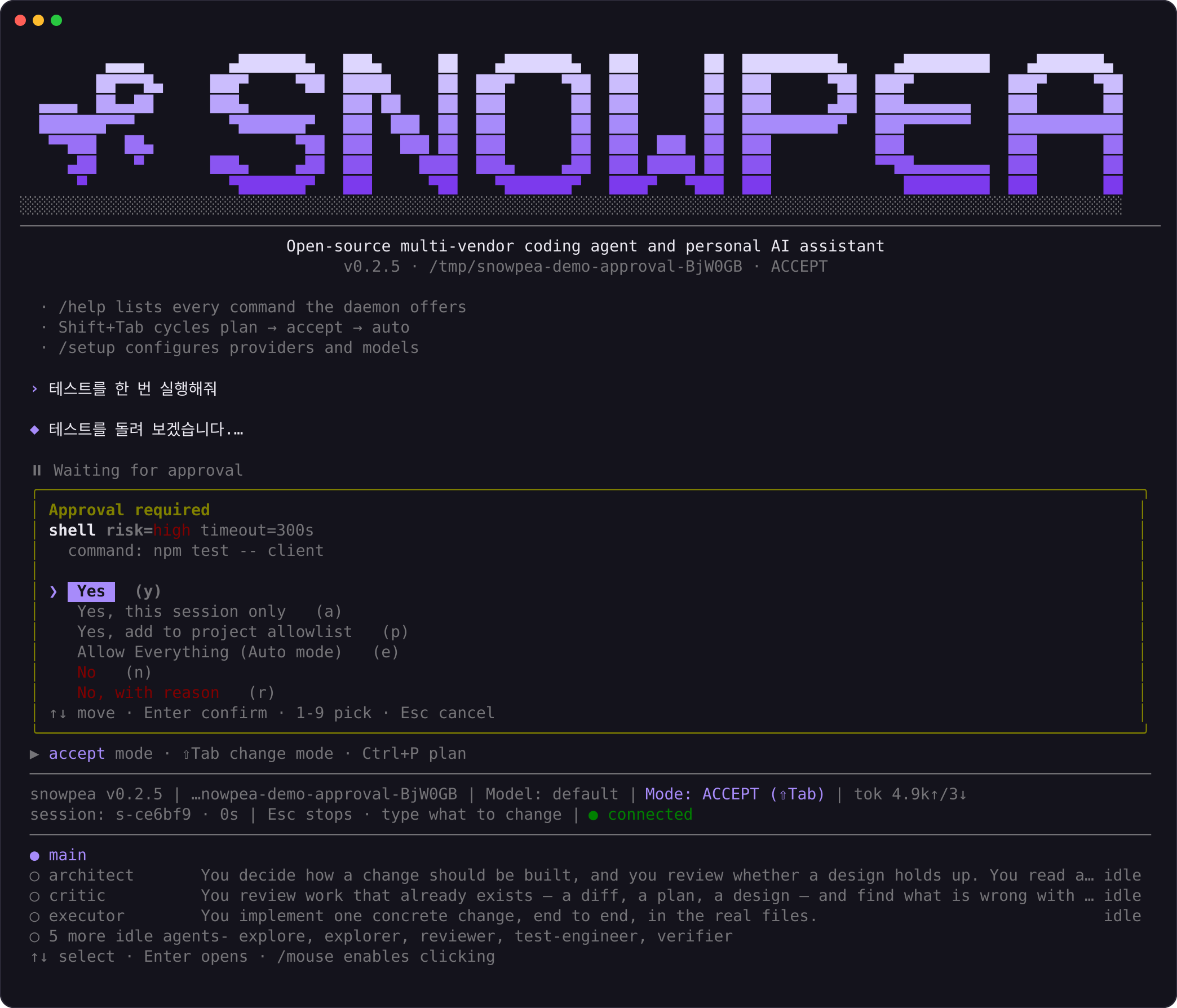
The approval menu appears in accept mode when a tool requires approval, such as a shell command or a network call. The header shows the tool name, risk, and timeout, and the body shows the exact command that would run. If the daemon has a warning, a red ⚠ line appears above the arguments.
| Choice | Key | Scope |
|---|---|---|
| Yes | y | this call only |
| Yes, and don't ask again this session | a | anything matching, for this session |
| Yes for this project | p | stored as an allowlist rule in <project>/.snowpea/settings.json |
| No | n | refuse |
- To approve once, press
Enterwhile the cursor is onYes. - While the prompt is open, the approval menu owns the keyboard.
- Typed characters do not reach the draft behind it, and
Shift+Tabdoes not change mode. - If nobody answers, after
approvals.timeoutSec(300 by default) the request is denied and the turn ends.
Every decision, including timeouts, is appended to $SNOWPEA_HOME/logs/approvals.jsonl.
Repeatedly approved commands can be added to the allowlist. Write patterns anchored and narrow, such as /allow ^git (status|diff|log)\b. The pattern ^git also allows git push --force.
1.5 Diff review
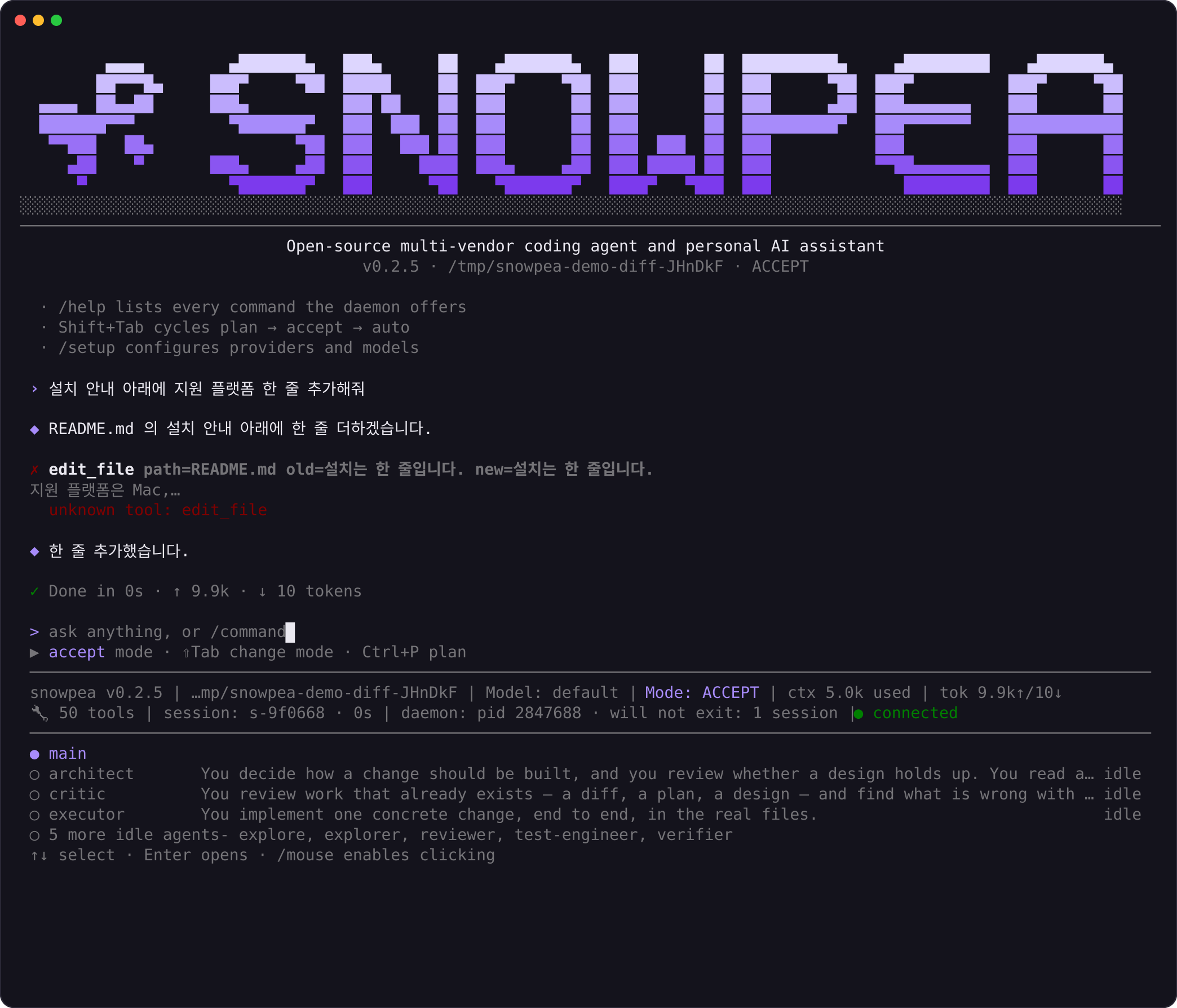
Diff review is the inline unified diff shown where a file change occurred. The header shows the file path and (+4 −2), and added and removed lines are colored. A new file is shown as ✚ Created notes.md (7 lines).
Long patches are cut to twelve lines. While the diff is still in the live region, Ctrl+O expands the newest diff.
- In accept mode, file edits apply without an approval prompt, so read the displayed diff.
- To undo a change, ask for a revert in the next prompt or run
git checkout. - To require approval for every edit, switch to plan mode.
In plan mode, write is denied.
1.6 The mode switcher
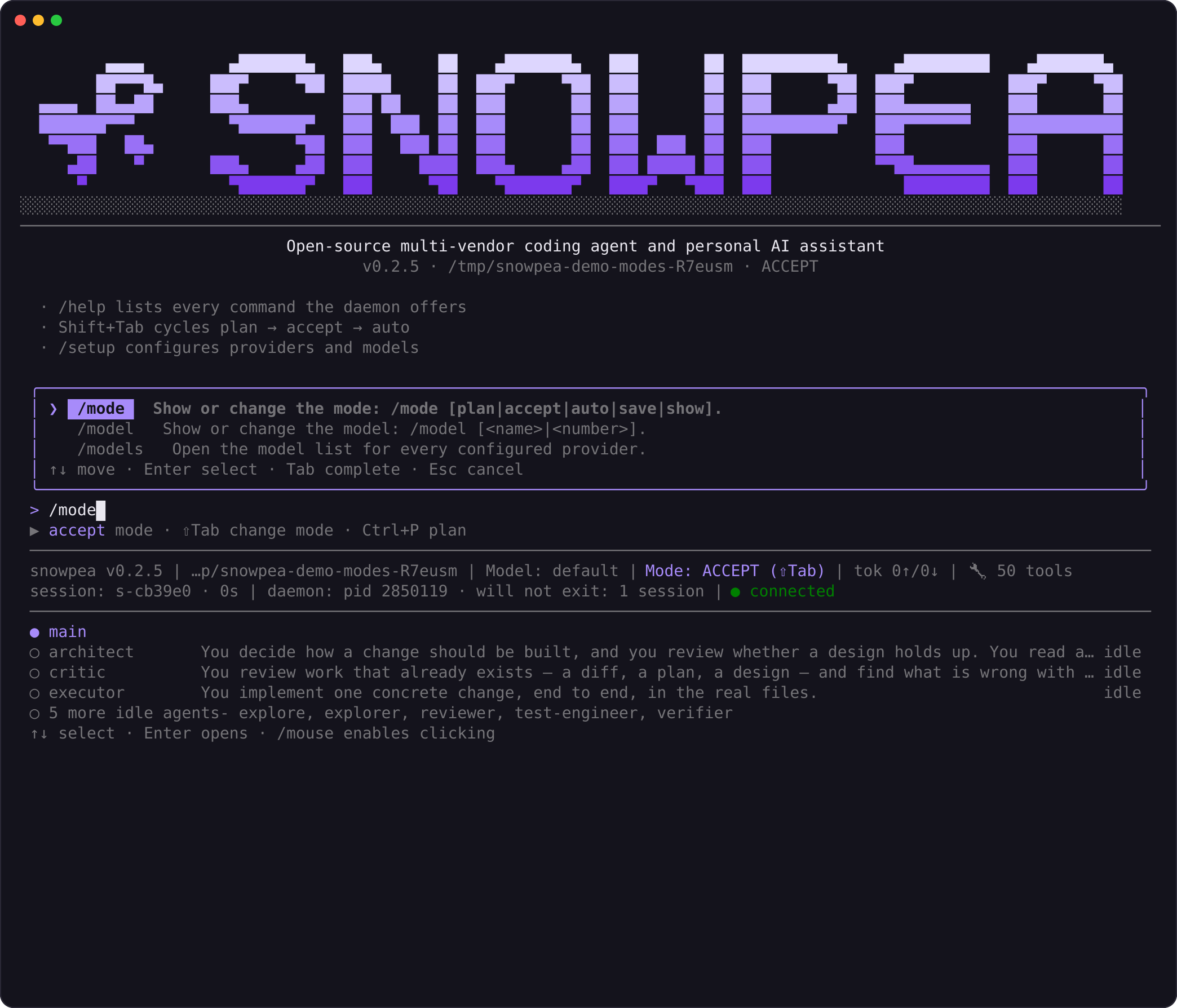
The mode switcher selects the permission mode for the next turn. Shift+Tab cycles accept → auto → plan. To choose a specific mode, press ↓ past the end of input history to move onto the mode summary row, then press Enter.
| Mode | read | write | exec | network | send |
|---|---|---|---|---|---|
| plan | allow | deny | deny | allow | deny |
| accept (default) | allow | allow | ask | ask | ask |
| auto | allow | allow | allow | allow | allow |
| Control | Result |
|---|---|
Enter | select the highlighted mode |
Esc | keep the current mode |
/mode save | save the current mode as this project's default |
Use plan for thinking only. Use accept for ordinary work. Use auto when you are watching the session or working inside a container you are willing to lose.
1.7 The slash-command palette
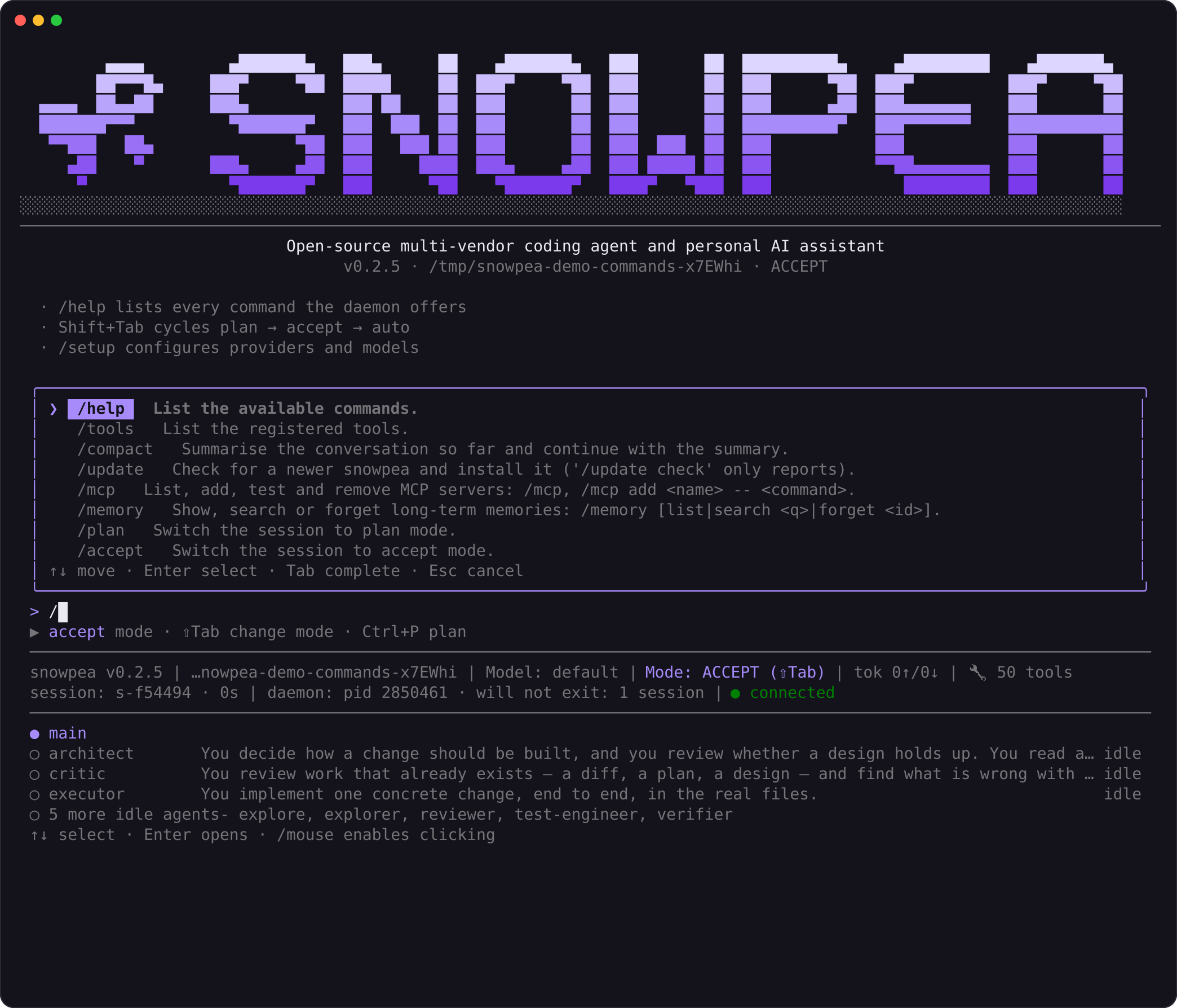
The slash-command palette opens when / is typed on an empty input. It shows command names with one-line help and filters the list as you keep typing. The list comes from the daemon, so commands added by plugins are included.
| Command | What it does |
|---|---|
/mode, /plan, /accept, /auto | show or change the mode |
/resume, /sessions | open a saved session |
/compact [instructions] | summarise the conversation to free context |
/approvals | the unattended approval queue |
/allow, /allowlist | add and inspect allowlist rules |
/agent list, /team ... | agents and teams |
/attach <path>, /voice, /rec, /tts on | attachments and voice |
/update | check for and install an update |
/help | everything |
- To find a command, type
/on an empty input. - To open the full list and key table, use
/helporF1. - For the complete reference for commands and subcommands, see Commands.
Work in the desktop app
The desktop app is a client connected to the same daemon (snowpea core). Clients that share a SNOWPEA_HOME share one daemon and one set of sessions. A session started in the terminal appears in the app sidebar, and a thread started in the app appears in the TUI.
Three areas are always available: the left rail, the bottom status bar, and the command palette.
| Area | Control or display |
|---|---|
| Left rail | Ctrl/⌘ 1…9 to jump, Ctrl/⌘ B to collapse |
| Bottom status bar | connected state, agreed protocol version, theme, token total across open threads |
| Command palette | open anywhere with Ctrl/⌘ K |
2.1 The first-run wizard
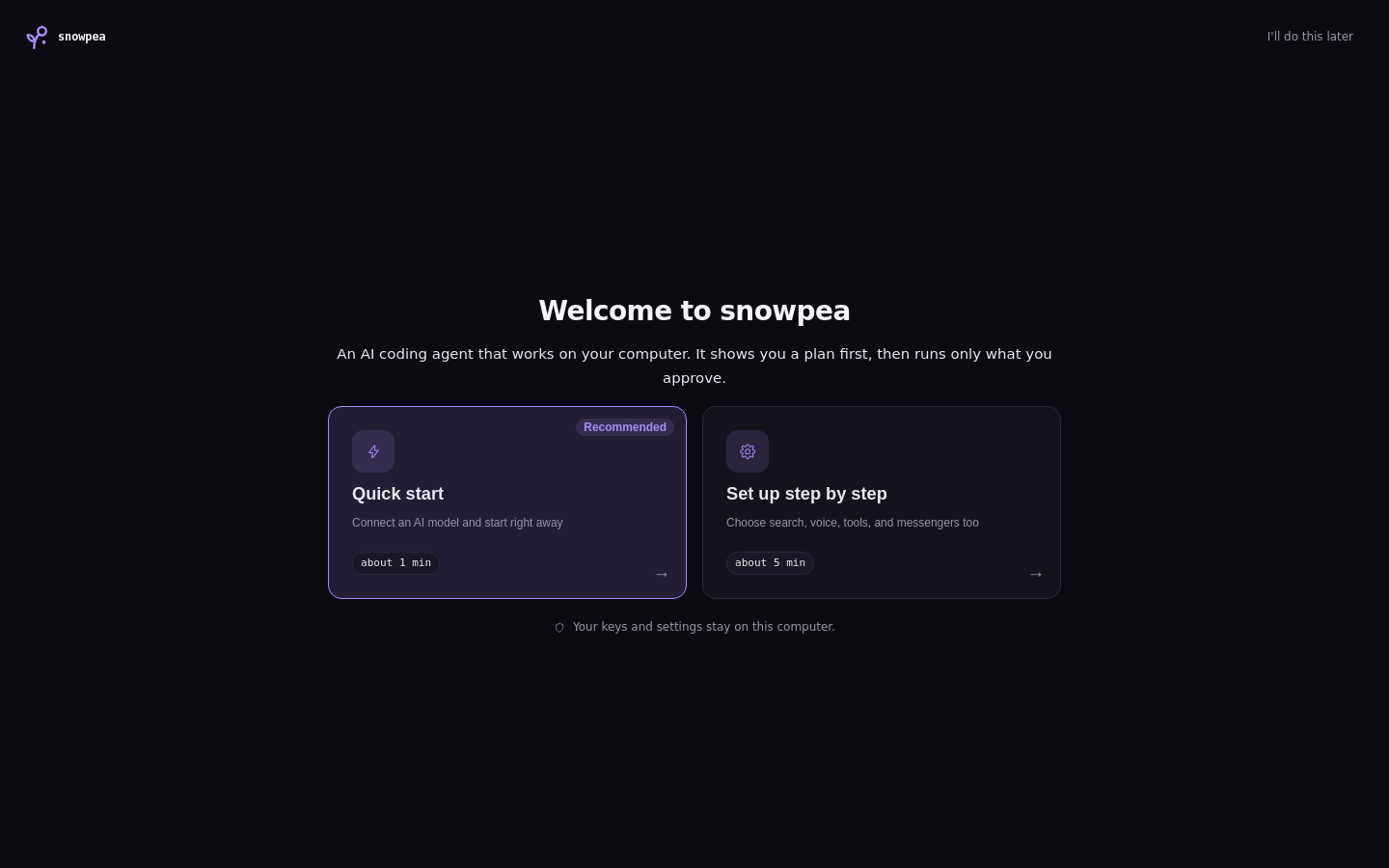
The first-run wizard is the settings screen shown when no provider is configured. It performs the same work as the terminal setup wizard and writes the same settings.json.
- Choose a vendor.
- Enter an API key or press Log in to start a browser login.
- To configure providers later, run
/setup.
The terminal and desktop app use the same configuration regardless of where it is set.
2.2 The main window (threads)
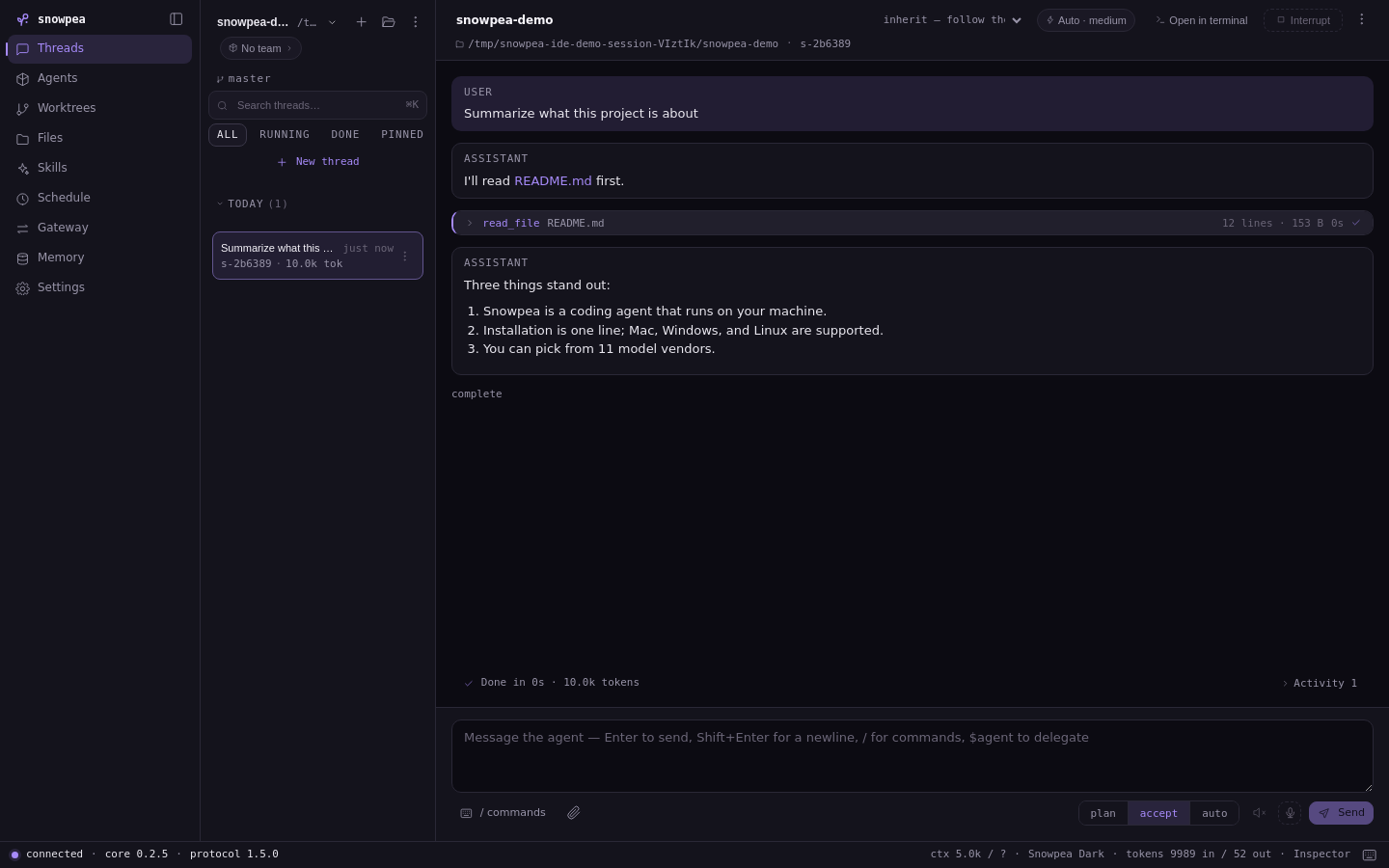
The main window is the default screen at route /. The left panel shows projects and their threads, the center panel shows the conversation, and the right panel shows the Inspector. While an answer streams, text appears in the center panel and tool calls stack as cards with their arguments.
A thread always belongs to a working directory. After installation, open a project with Open project….
| Key | Action |
|---|---|
Enter | send |
Shift+Enter | newline |
/ on an empty input | command palette |
Ctrl/⌘ . | interrupt the running turn |
Ctrl/⌘ V | attach a clipboard image, or paste text |
- Open a project with Open project….
- Type a prompt in the input and press
Enter. - Check the Inspector on the right for what the turn read and changed.
- To attach a file, select 📎 in the toolbar under the input.
- To use dictation, select microphone in the toolbar under the input.
2.3 The thread sidebar
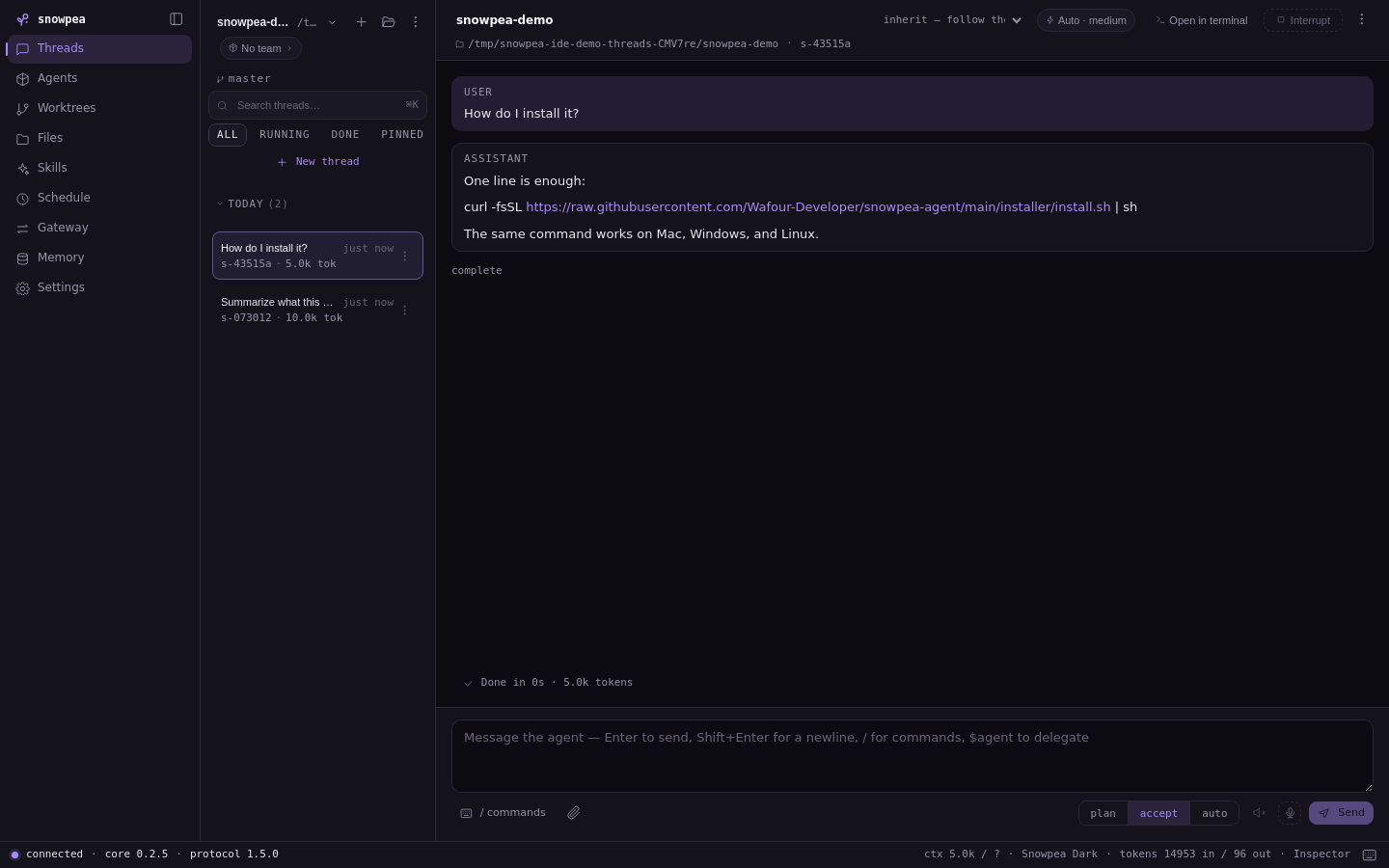
The thread sidebar lists sessions with their titles and relative times. The new-thread control is at the top. Each thread has a badge for the surface that created it: ide, tui, gateway, or core.
- Click a thread to replay its full history.
- To create another thread in the same folder, select + thread in the header.
The full history can replay even if this window has never seen any of the thread's events.
2.4 Diff review
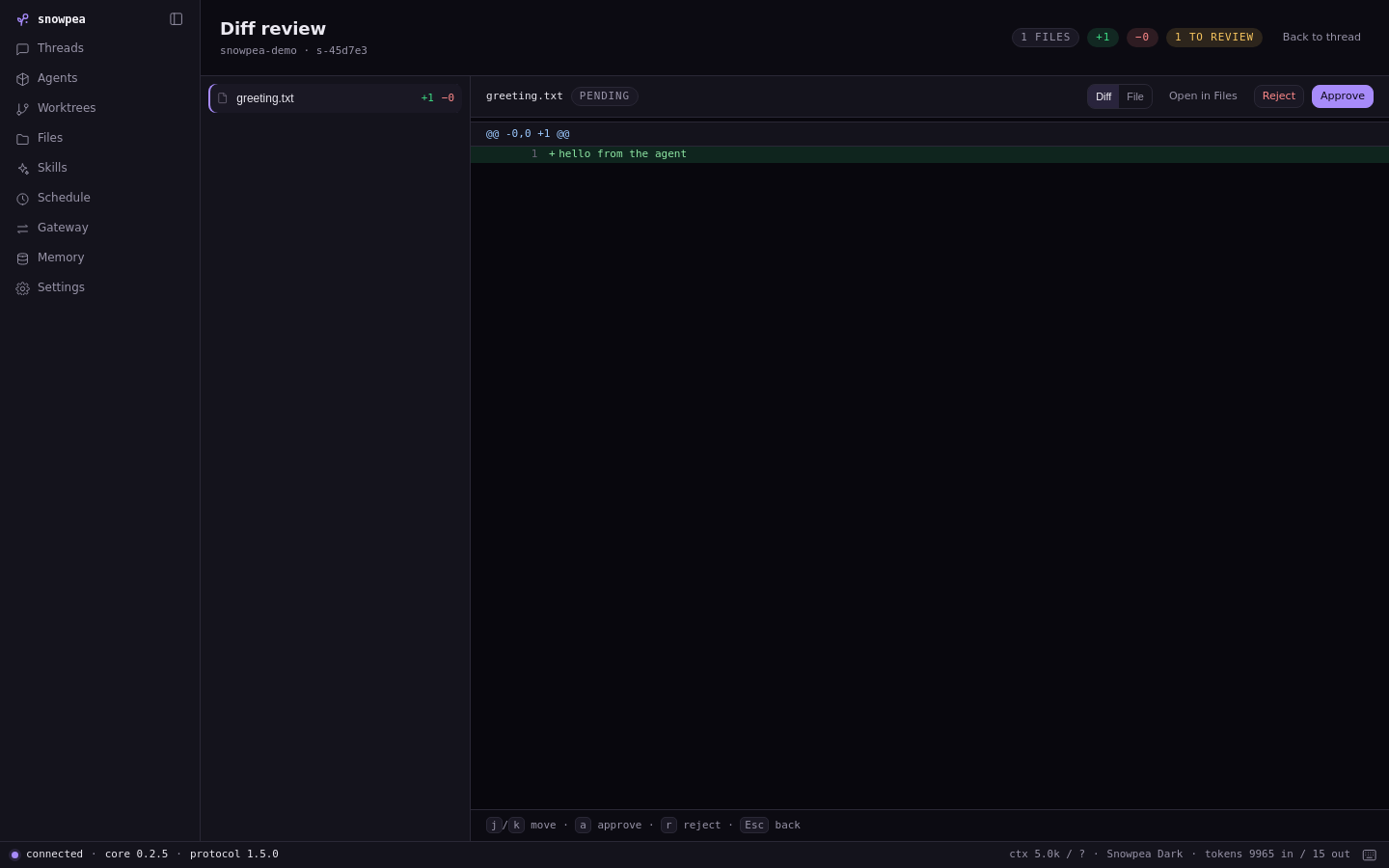
Desktop diff review is the change review screen at route /thread/:id/diff. The left side lists changed files, and the center shows a side-by-side diff. Each hunk has an accept or reject decision.
- Select a file in the changed-file list.
- Review the hunk in the center diff.
- Select accept for hunks to keep.
- Select reject for hunks to discard.
The decision goes back to core and is reflected in other clients watching the same session.
2.5 Agents
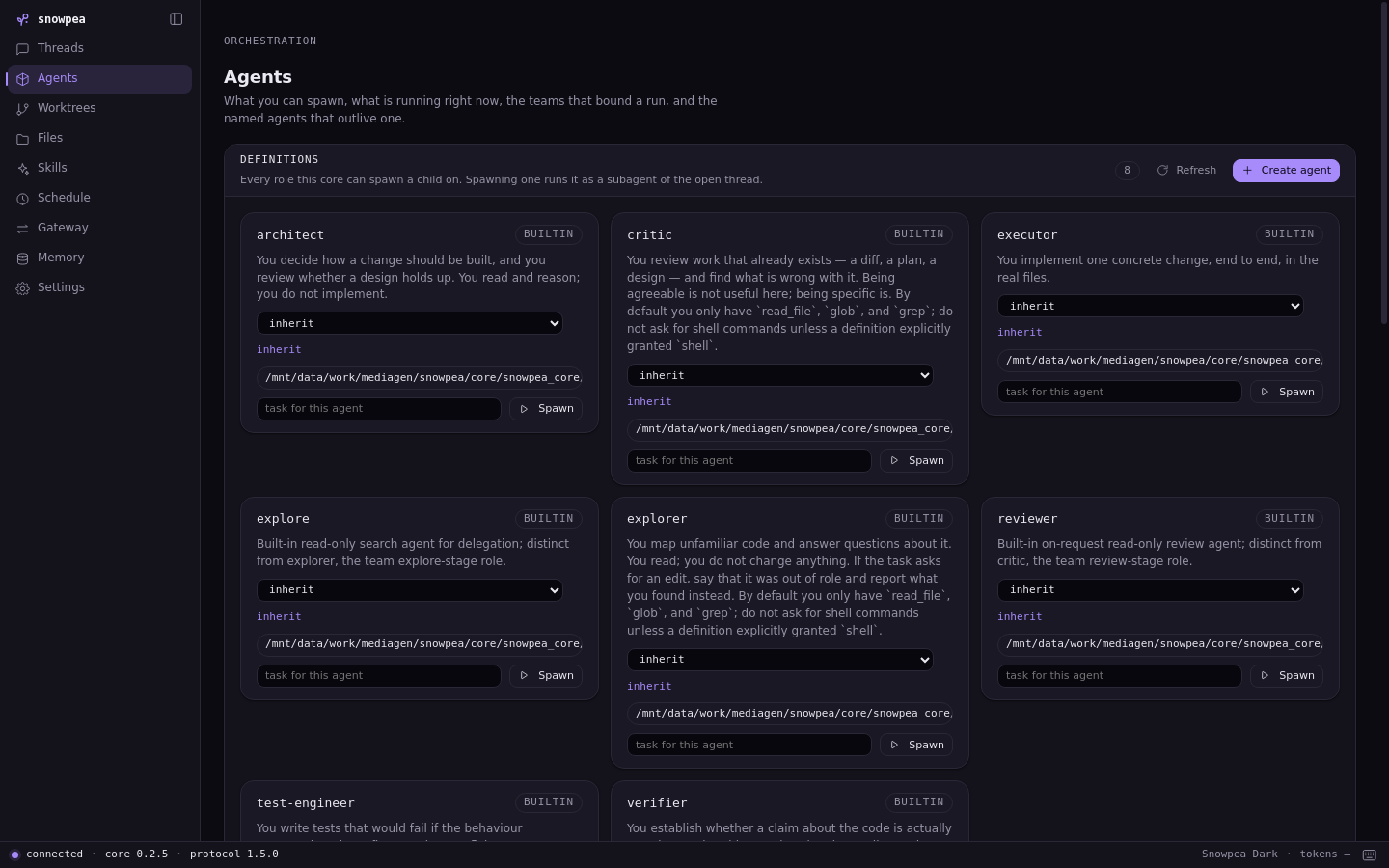
The Agents screen is at route /agents. It has three sections: definitions, running subagents, and named agents. The definition list comes from core, so a definition created in the terminal with /agent create also appears here.
The running subagents section updates in real time. A subagent spawned by any session appears there, changes state while it runs, and remains after it finishes so you can read its result.
- Select Create agent.
- Enter one sentence describing what the agent is for.
- To register a callable chat name, tick Named agent.
- To start a subagent without going through a thread, enter a task in a card's task box and select Spawn.
Core generates the agent definition from the sentence.
2.6 Schedule
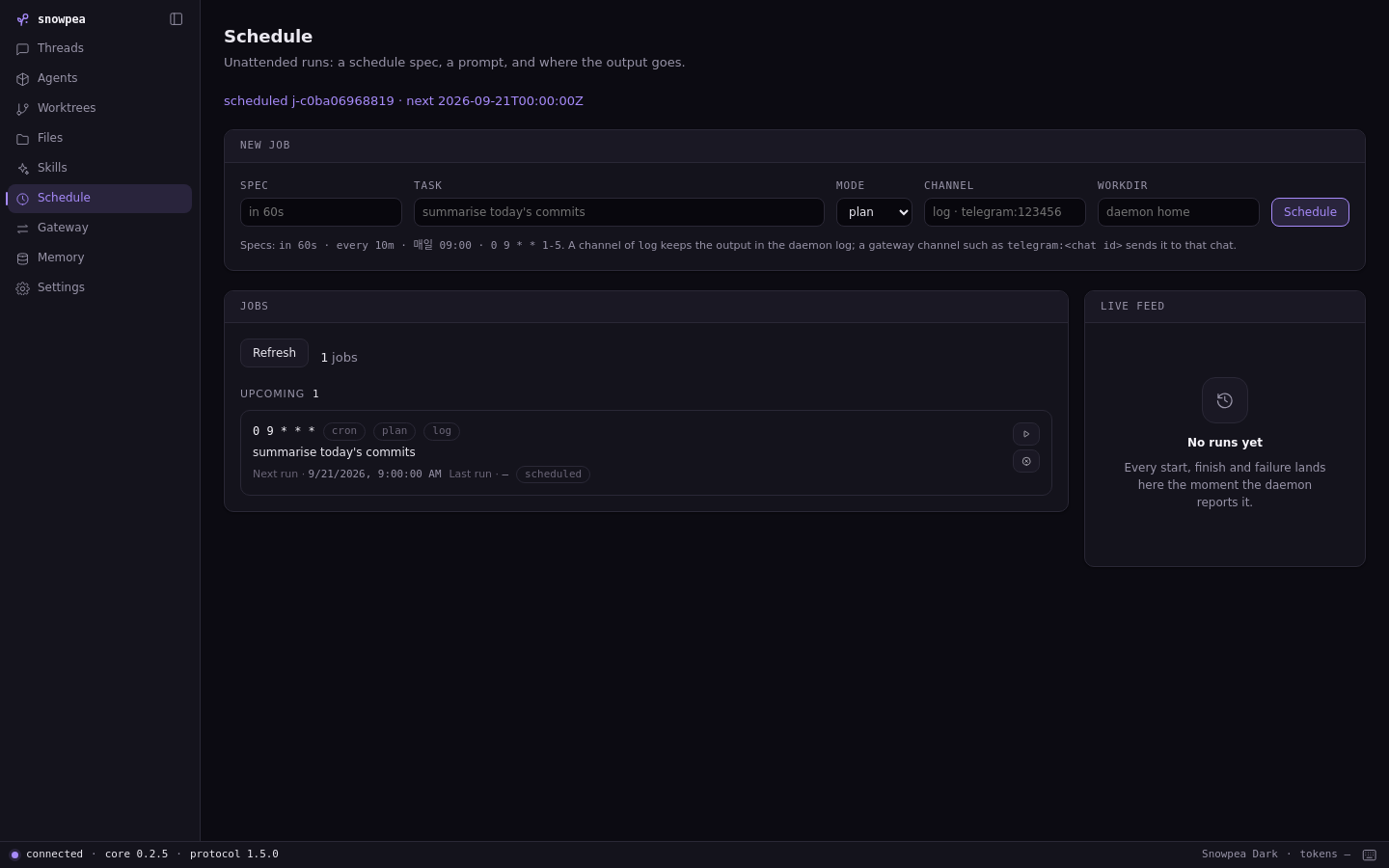
The Schedule screen is at route /schedule. It shows the jobs core runs on its own and a live feed of their results. Each row shows a cron expression or one-shot spec such as in 60s, the next run, and the channel the result is delivered to.
| Field | Meaning |
|---|---|
| Spec | when it runs: in 60s for one-shot, a cron expression for recurring |
| Task | the prompt this job runs |
| Mode | the permission mode the job's session starts in |
| Channel | where the result goes: log, or telegram:<chat id> |
| Workdir | where it runs; empty means the daemon's home |
An unattended job cannot answer its own approvals. The safe default for scheduled jobs is plan. auto on a scheduled job applies all allowed permissions.
2.7 Skills
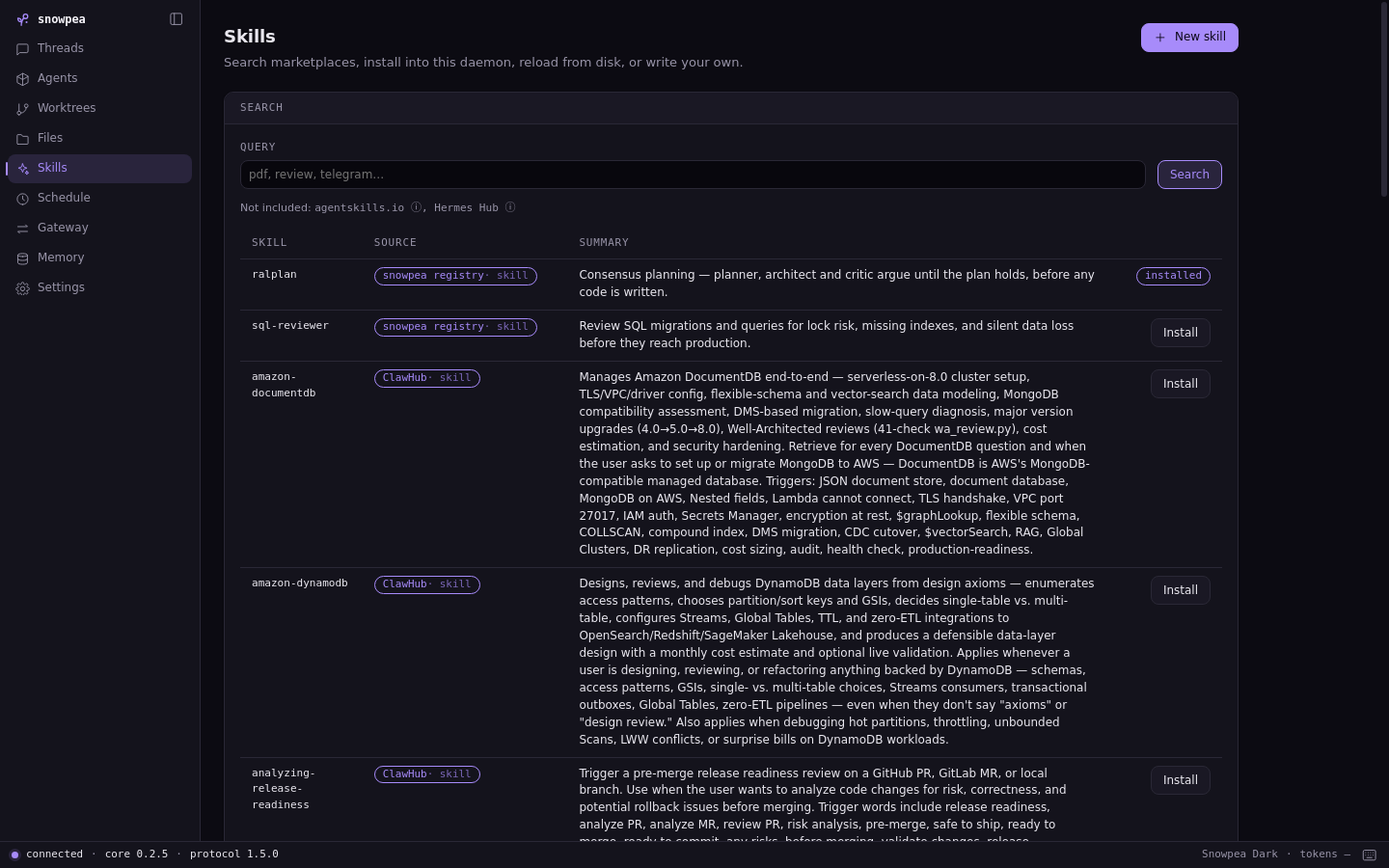
The Skills screen is at route /skills. It searches marketplaces and installs results. Installed items have a badge, and each result shows its source.
After a search, one of four states is shown.
| State | Meaning |
|---|---|
| Result rows | matching items exist |
| Source notice | one or more sources could not be reached |
no match | every source answered and none matched |
| Error | the search itself failed |
- Type a query.
- Select Search.
- Select Install on the row to install.
Installation goes through core, so the installed skill is immediately available in the TUI.
2.8 Settings — providers
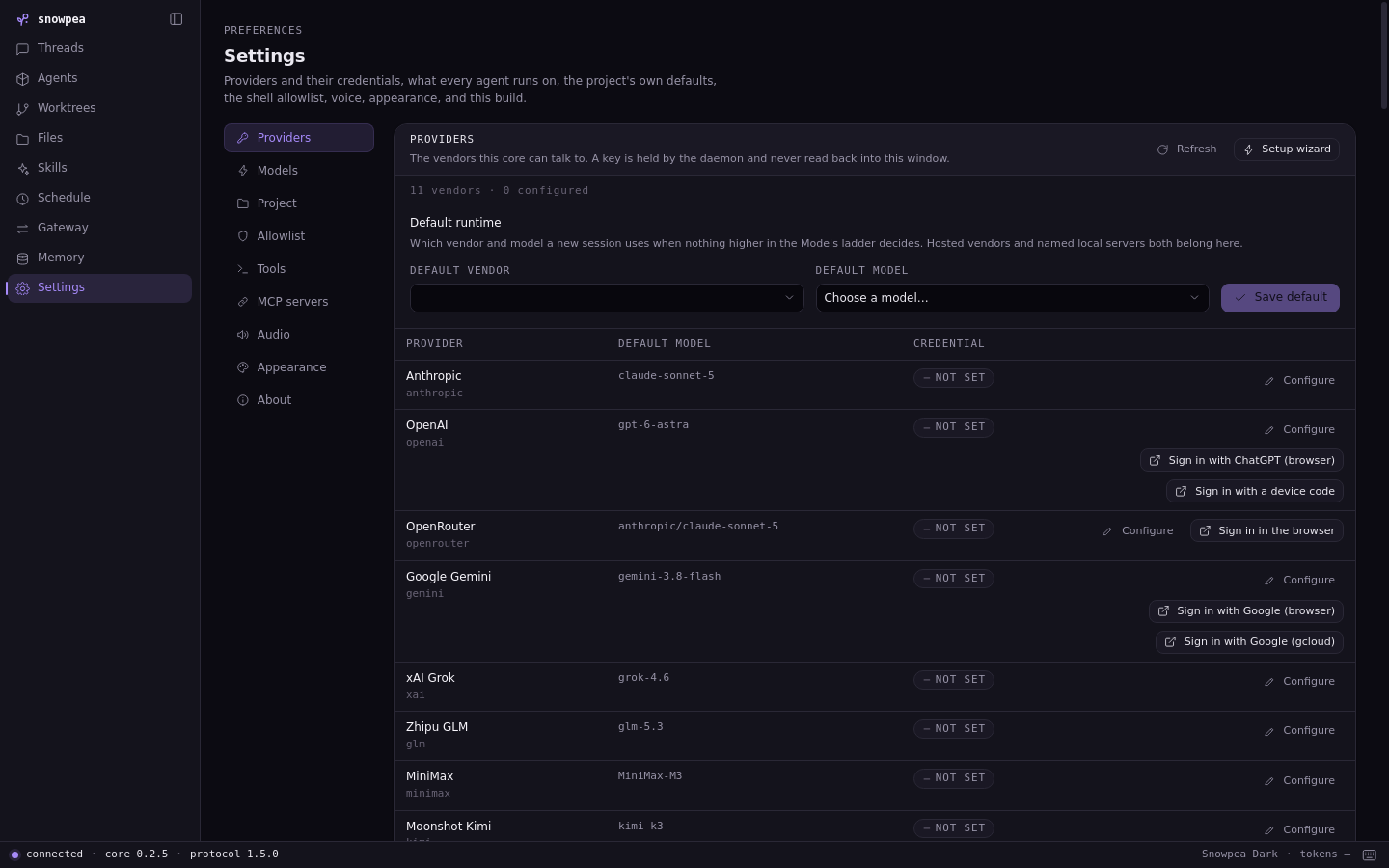
Provider settings are at route /settings/providers or Ctrl/⌘ ,. The table lists all eleven vendors core knows about with their configured state. Configure opens a dialog for API key, base URL, and default model.
Some vendors also show Log in. Log in runs the browser login flow instead of asking for a key.
Secrets flow one way only. Reading settings back gives *** rather than the value, and the Configure dialog always starts empty. This prevents a masked value from overwriting a real credential.
- Configure the vendor to use as the default.
- If needed, change the default model in the model picker.
- To change project defaults, set the default mode and shell allowlist in another section of the same settings screen.
Project defaults are stored in that project's .snowpea/settings.json.
Choose your next guide
- The terminal UI — the full key table, full-screen mode, teams and short delegation.
- The desktop manual — screen by screen, plus worktrees, memory, themes and packaging.
- FAQ · Troubleshooting.