Getting started
This page covers installation, model setup, and starting the first session.
On this page
- Install snowpea
- Connect a model
- Give it a first task
- Choose your next guide
1. Install snowpea
snowpea can be installed on macOS, Linux, WSL2, and Windows PowerShell. Python 3.11+ is handled by the installer through uv, and Node 20+ is required for the terminal UI. The LLM vendor can be any one of the eleven vendors included in v0.1.
Desktop app installers are published per platform at https://agent.snowpea.ai/download.
macOS, Linux, WSL2
Run the installer in a terminal.
bashcurl -fsSL https://raw.githubusercontent.com/Wafour-Developer/snowpea-agent/main/installer/install.sh | shThe
snowpeacommand is installed as a uv tool.
Windows PowerShell
Run the installer in PowerShell.
powershelliwr https://raw.githubusercontent.com/Wafour-Developer/snowpea-agent/main/installer/install.ps1 | iexThe
snowpeacommand is installed.
Installer behavior
The installer is idempotent. Running it again upgrades the current installation instead of installing a second copy.
| Action | Result |
|---|---|
Check uv | Installs it through the official installer when missing. |
Check node --version | Verifies that it reports 20 or higher. |
Install snowpea | Installs the snowpea command as a uv tool. |
Check PATH | Adds ~/.local/bin to the shell profile if it is not already on PATH. |
Preview the installer
Download the installer script.
bashcurl -fsSL https://raw.githubusercontent.com/Wafour-Developer/snowpea-agent/main/installer/install.sh -o install.shThe
install.shfile is created.Run it with
--dry-run.bashsh install.sh --dry-runThe planned actions are displayed without making changes.
Manual install
Run the official
uvinstaller whenuvis missing.bashcurl -LsSf https://astral.sh/uv/install.sh | sh # uv, if missinguvis installed.Install
snowpea-agentas a uv tool.bashuv tool install snowpea-agentThe
snowpeacommand is installed.
Verify the install
Run the version command.
bashsnowpea --versionThe installed snowpea version is printed.
If you get snowpea: command not found
~/.local/bin is not on the PATH of the current shell. The installer appends the path to your profile but cannot change an already-open shell. Open a new terminal, or source the profile.
2. Connect a model
Model configuration is saved with the snowpea setup command. If there is no configuration, running snowpea opens the setup wizard on first launch.
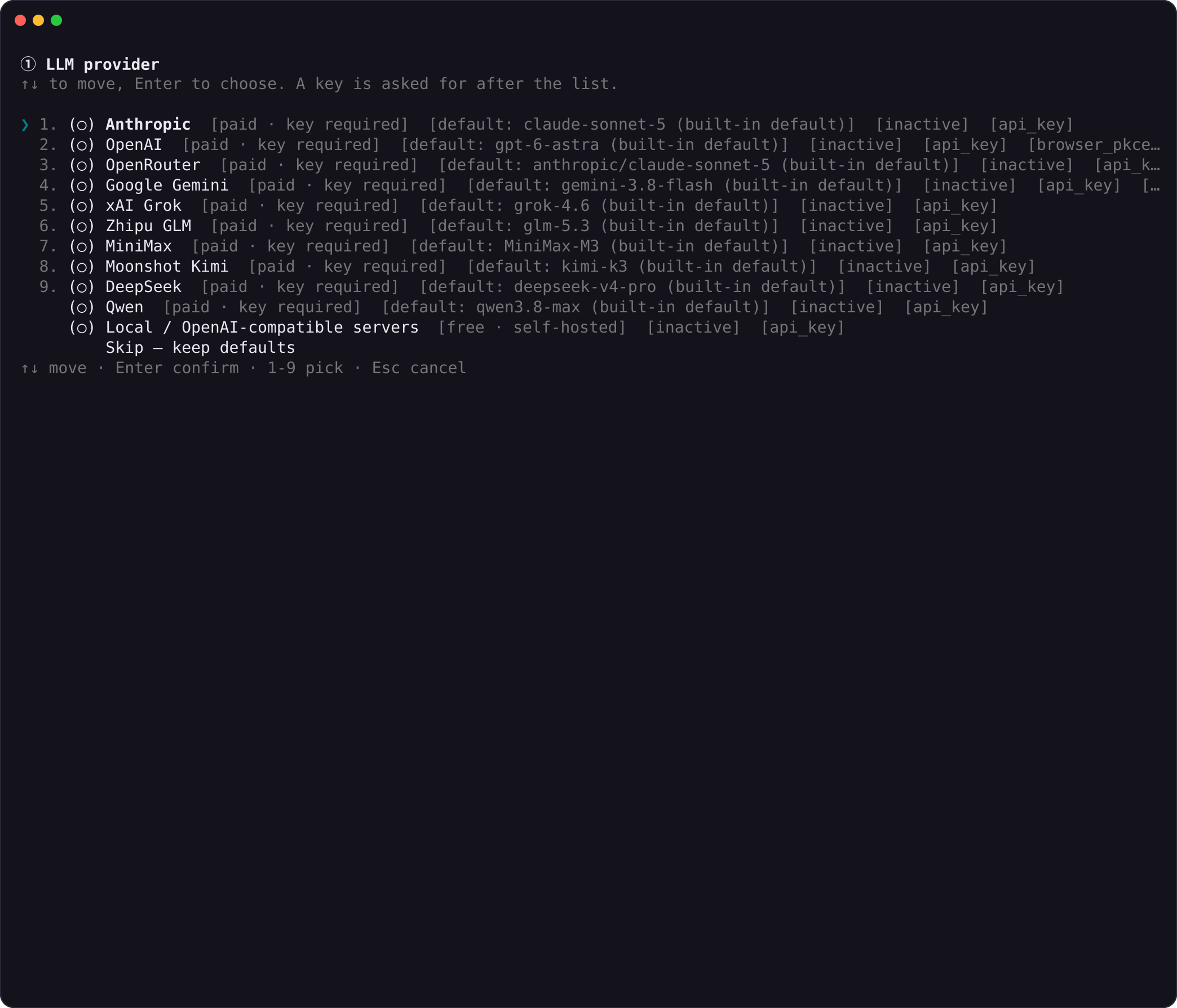
Setup commands
| Command | Action | Result |
|---|---|---|
snowpea setup | Selects only the LLM model and uses defaults for the rest. | Quick setup is saved. |
snowpea setup --full | Shows all five screens in order. | All settings can be reviewed. |
snowpea setup --blank | Asks nothing and writes defaults. | Default configuration for scripted installs is saved. |
--full has five screens and a summary. Every screen includes Skip — keep defaults, and every screen has a corresponding command-line flag.
| Screen | What you choose | Flag |
|---|---|---|
| Providers | LLM vendor, key, model | --vendor, --key, --model, --base-url |
| Search | one web-search provider | --search-provider |
| Browser | one browser provider | --browser-provider |
| Tools | which tool categories are on | --tools |
| Gateway | Telegram / Discord / Slack | --gateway, --token, --user-id |
Lists are ordered free-and-keyless first, then free-but-needs-a-key or self-hosted, then paid. The default in each list is marked with a star. In the default configuration, the only paid item is the LLM vendor; web search and the browser work without a key.
Picking a vendor
A vendor is a model provider. Eleven vendors are available in v0.1.
| Vendor id | Label | Adapter | Auth |
|---|---|---|---|
anthropic | Anthropic | native Messages API | API key |
openai | OpenAI | OpenAI-compatible | API key, device-code login |
openrouter | OpenRouter | OpenAI-compatible | API key, OAuth PKCE login |
gemini | Google Gemini | native | API key, Google OAuth, access token |
xai | xAI Grok | OpenAI-compatible | API key |
glm | Zhipu GLM | OpenAI-compatible | API key |
minimax | MiniMax | OpenAI-compatible | API key |
kimi | Moonshot Kimi | OpenAI-compatible | API key |
deepseek | DeepSeek | OpenAI-compatible | API key |
qwen | Qwen | OpenAI-compatible | API key |
local | Local (vLLM · Ollama · LM Studio) | OpenAI-compatible | base URL, key optional |
Select a vendor where you already have an account. Whether the adapter is native or OpenAI-compatible does not change how snowpea is used. When local points at Ollama or vLLM, use a model that supports tool calling.
Non-interactive vendor setup
Pass the vendor and API key as flags.
bashsnowpea setup --vendor deepseek --key sk-your-key-here snowpea setup --vendor anthropic --key sk-ant-... --model claude-sonnet-4-5The specified vendor configuration is saved.
If OPENAI_API_KEY or ANTHROPIC_API_KEY is already exported, the wizard offers it first. The same key does not need to be pasted again.
Browser login
Start OpenAI device-code login.
bashsnowpea provider login openai # device code: a code appears, you approve it in the browserOpenAI authentication is saved after browser approval.
Start OpenRouter OAuth PKCE login.
bashsnowpea provider login openrouter # OAuth PKCE: a local callback receives the codeOpenRouter authentication is saved after the local callback receives the code.
Other vendors answer login_unsupported and provide the --vendor/--key command to run instead.
Check configuration
Print the configured provider list.
bashsnowpea provider listThe current vendors and authentication state are displayed.
Search and browser
The default search provider is ddgs, which needs no account and no key. The default browser provider is local_chromium, which runs a headless Chromium through Playwright on the local machine. The first run may ask to download the browser binary.
3. Give it a first task
Start a session from the project directory where work should happen. A session is a unit of work state that the daemon (snowpea core) manages per project.
Change into the project directory.
bashcd ~/projects/my-appThe current directory changes to the project root.
Run
snowpeawith no arguments.bashsnowpeaThe terminal UI opens.
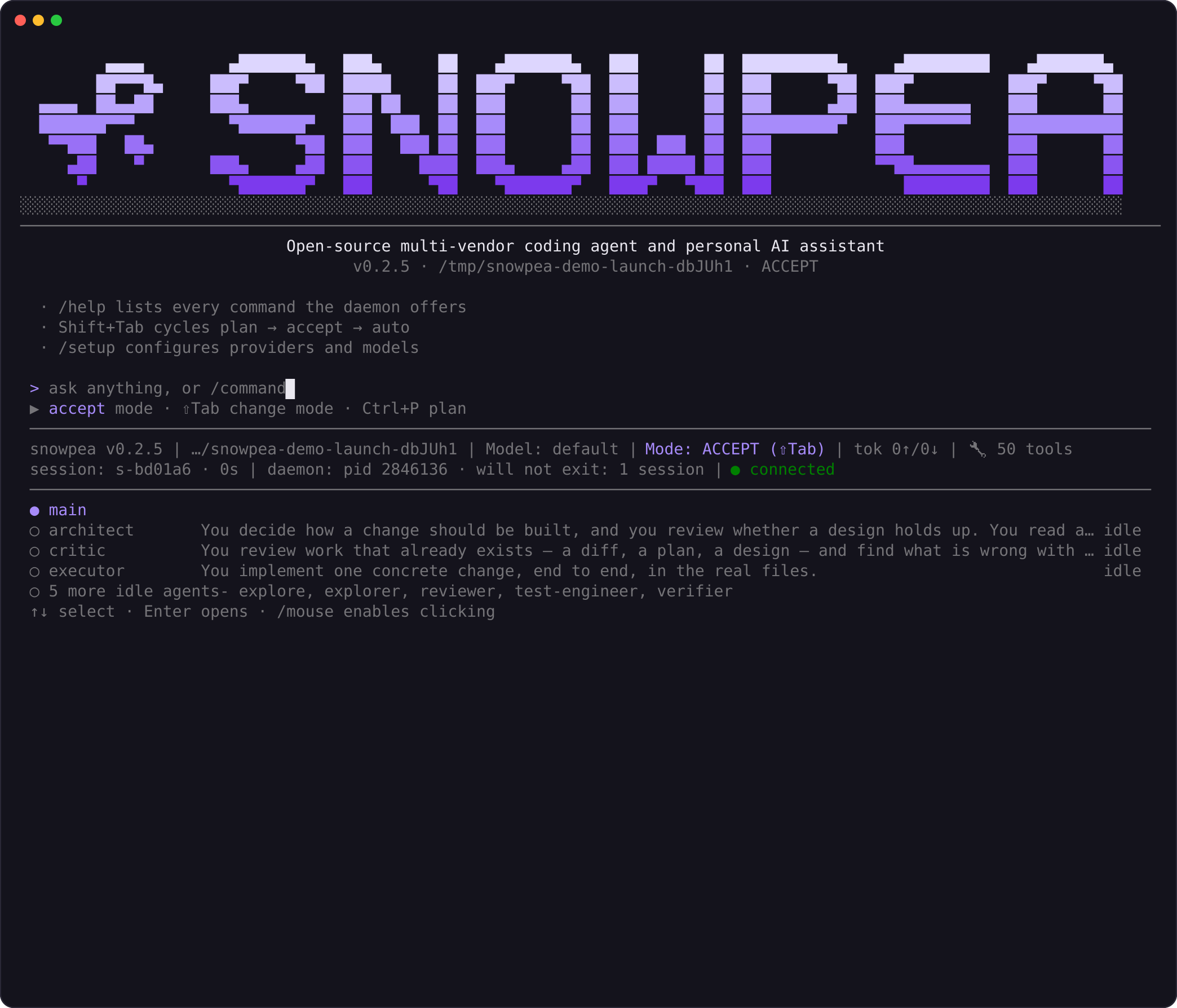
The TUI first prints the wordmark sized to the terminal. It then shows the version, vendor/model, the working directory, and the mode. If the daemon (snowpea core) has an open session for the same directory, one more line is shown with the last session, and pressing R on empty input resumes that session in the current window.
The banner is printed once. It scrolls like other output.
The first prompt
Type a prompt into the input line.
text> read README.md and explain in three sentences what this project doesThe agent reads
README.mdand explains the project in three sentences.
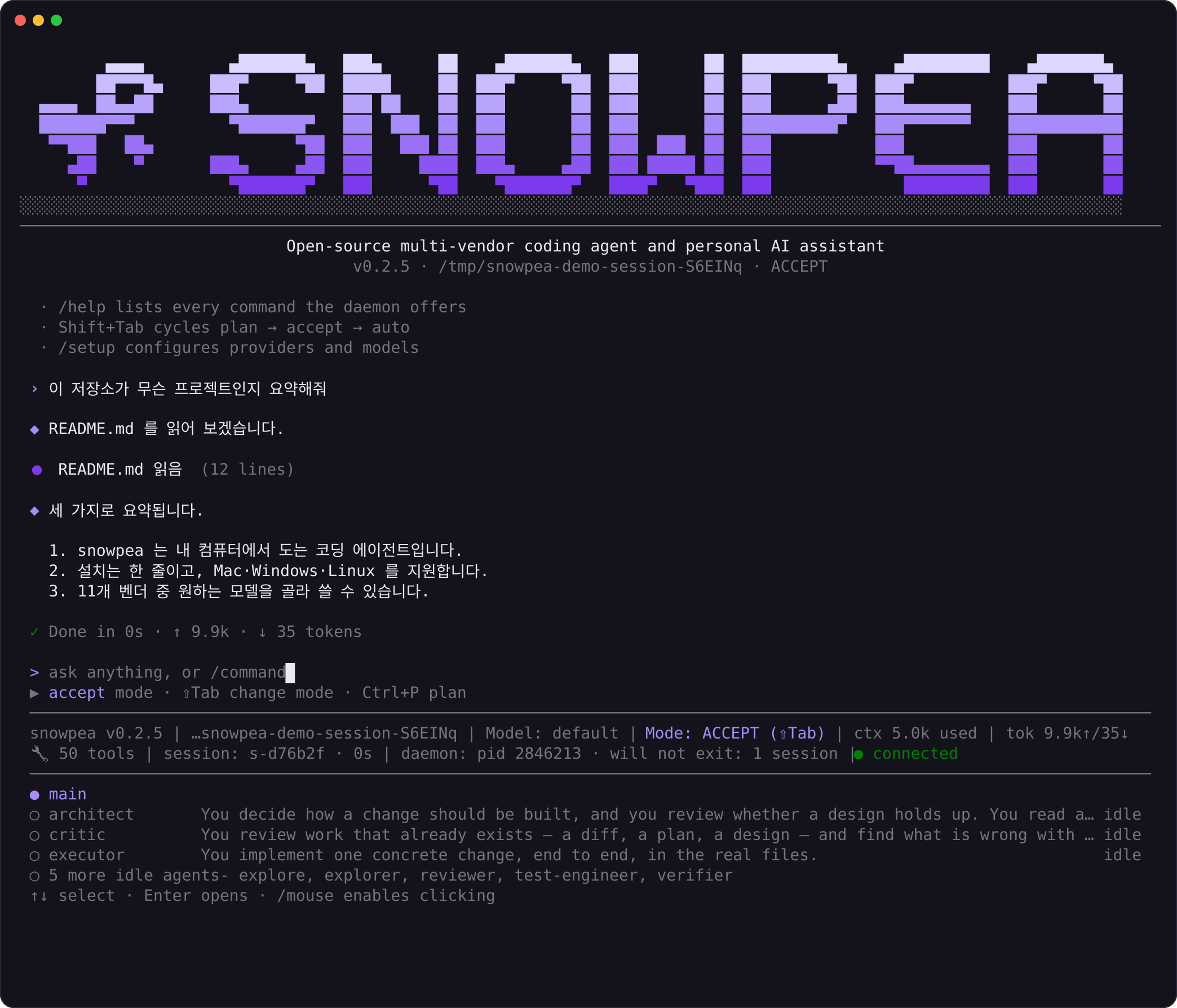
The line above the input shows the current action. ✢ Pondering… (12s · ↓ 3.7k tokens) means the model is thinking, and ✳ Running shell: npm test… means a tool is running. The clock and token counts belong to the current turn; session totals are in the status line.
Press Esc to interrupt the current turn. When several tool calls finish in a row, they collapse into this format:
⏺ Ran 2 shell commands (34 lines)
⏺ Read 3 files (128 lines)
A failed call keeps its own card with output. Press Ctrl+O to expand the newest tool call or diff.
The default mode is accept
Mode: ACCEPT in the status line is the default. File reads and edits run without a prompt, while shell commands, network calls, and message sending show an approval request first. Shift+Tab cycles accept → auto → plan.
The exact boundaries are in Modes. In the approval menu, the cursor starts on Yes, and Enter selects yes. y, a (do not ask again this session), p (add a project allowlist rule), and n work directly.
4. Choose your next guide
- User manual — screen-by-screen usage.
- Modes — permission tags, the mode matrix, and the allowlist.
- Commands — every slash command and CLI subcommand.
- FAQ · Troubleshooting — errors and recovery procedures.
- Desktop app — using the same daemon in a window.